
Ugreen Audio
1 Hour Ago
121 MB
2.5.0.917
Android 5.0 and above
10M+

Description
Wireless earbuds and headphones have become part of everyday life. We use them while travelling, working, exercising, watching videos, or simply listening to music. However, the controls available directly on an audio device are usually limited. This is where a companion application can become useful. Ugreen Audio APK is designed to work with compatible UGREEN acoustic devices.
Instead of relying only on the physical or touch controls of your earbuds or headphones, the app gives you a central place to manage supported audio settings from your Android phone. You can use the application to connect supported UGREEN devices, adjust sound effects, manage noise cancellation, and personalize certain listening features. The available controls can vary depending on the audio product you connect.
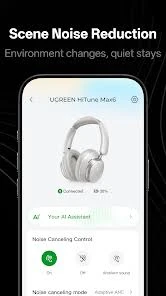
For someone who already owns compatible UGREEN earbuds or headphones, the app can make it easier to get more control over the listening experience. On the other side, Soulear APK is another helpful application that lets you connect your phone with compatible hardware over Wi-Fi, allowing you to view available device information and manage supported functions directly from your mobile screen.
What Is Ugreen Audio APK?
Ugreen Audio is a companion application for supported UGREEN audio products. Its main purpose is to provide additional controls that may not be practical to manage directly from the device itself. Once a compatible product is connected, the application can provide access to its supported sound and device settings. For example, you may be able to adjust sound effects, change equalizer settings, or control available noise-cancellation modes.
This makes the app particularly useful for people who want more than the standard plug-and-play experience. Plus, the Ugreen Audio APK refers to the Android installation package of the application. APK files allow Android users to install applications manually, although downloading from the official app store or another verified source is generally the safer option.
How Does Ugreen Audio Work With Your Devices?
The application works as a control panel between your Android phone and a compatible UGREEN audio device. Normally, you first pair your earbuds or headphones with your phone through Bluetooth. After that, you can open Ugreen Audio and allow the application to detect the supported device.
Once connected, the available settings will depend on the model. Some products may offer several sound controls, while simpler devices may provide fewer options. Therefore, you should not expect every feature shown in the application to work with every UGREEN product.
Main Features of Ugreen Audio Android APK
The usefulness of the app comes from putting several audio controls in one place. Here are some of the main functions users may find.
Easy Device Connection
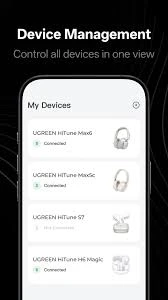
Ugreen Audio makes managing compatible audio products more convenient. After your UGREEN earbuds or headphones have been paired with your Android device, the application can identify supported hardware and display the controls available for it. This saves you from repeatedly changing settings through different Android menus.
Personalized Sound Settings
People do not all enjoy music in the same way. Some prefer stronger bass, while others want clearer vocals or a more balanced sound. Ugreen Audio can provide sound adjustment options for supported devices. Depending on your product, these may include equalizer controls or predefined sound effects.
Noise Cancellation Controls
Noise cancellation is useful when you are travelling, working in a busy place, or trying to concentrate. Compatible UGREEN products may allow their noise-control features to be managed through the app. This gives you an easier way to switch between the modes supported by your particular devices.
Sound Effect Adjustment
Another useful part of Ugreen Audio is the ability to change supported sound effects. A particular setting might work well for music but feel less suitable for spoken content. Having several sound options makes it easier to adapt the device to what you are currently listening to.
Device Information
A companion app can also make it easier to understand the status of your connected audio equipment. Depending on the device and app version, relevant product information and supported controls may appear inside the application.
Firmware and Device Management
Modern wireless audio products rely on internal software known as firmware. For supported products, device-management features can help keep the hardware and its companion application working together properly. Available firmware-related options will depend on the specific UGREEN model and current app version.
Why Ugreen Audio Can Improve Everyday Listening
You do not necessarily need a companion app simply to listen to music through Bluetooth. Most wireless earbuds can handle basic playback without one. The advantage of Ugreen Audio appears when you want additional control.
For example, you might enjoy stronger bass while listening to music but prefer a clearer and more balanced profile for podcasts. Similarly, noise cancellation may be useful on a bus but unnecessary when you are sitting somewhere quiet.
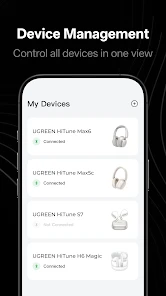
Instead of using the same configuration throughout the day, the app lets supported UGREEN hardware adapt more closely to different situations.
How to Download UgreenAudio APK on Android?
Android applications are commonly installed through an official app store. APK installation provides another method when a user needs to install an Android package manually. If you are searching for the You Green Audio, pay close attention to where the installation file comes from.
A file carrying the correct app name or logo is not automatically genuine. Modified or unofficial APK packages can create privacy and security problems. Before installing, check the app name, source, version, and requested permissions. Avoid files from random links, pop-ups, comments, or unknown download pages.
How to Install Ugreen Audio APK?
Manual APK installation is fairly simple on most modern Android phones.
- Download the Ugreen Audio APK from a source you trust.
- Open the downloaded APK file.
- Android may ask for permission to install apps from that source.
- Enable the required permission only when necessary.
- Return to the installation screen.
- Tap Install.
- Wait for Android to complete the process.
- Open Ugreen Audio after installation.
- Review any permissions requested by the app.
Android menu names can differ slightly between Samsung, Xiaomi, Oppo, Vivo, Google Pixel, and other devices.
Connecting UGREEN Earbuds or Headphones
Installing the app is only the first part. Your supported audio device also needs to communicate with your phone. Start by charging your UGREEN device and turning on Bluetooth on your Android phone.
Place the earbuds or headphones into pairing mode if they are not already connected. Open your phone’s Bluetooth settings and select the correct UGREEN product. After the Bluetooth connection is established, open Ugreen Audio.
Changing EQ and Sound Settings
Equalizer controls can make a noticeable difference to how audio feels.
If your connected UGREEN device supports EQ adjustment through the application, open its sound settings and explore the available profiles or controls.
For stronger low frequencies, you may prefer a bass-focused setting. If voices sound unclear, a profile that emphasizes vocal detail may work better. A balanced option can be more suitable when you want a neutral everyday sound.
Your headphones, music type, listening volume, and personal preference all affect the result. Try different settings and use the profile that sounds comfortable to you.
Managing Noise Cancellation
For devices with supported noise-control technology, Ugreen Audio can make switching modes more convenient.
Noise cancellation can help reduce distracting background sounds in suitable environments. Other available modes may be more appropriate when you need greater awareness of what is happening around you.
Choose your mode according to the situation rather than leaving one option active all the time.
When walking near traffic or in another environment where awareness matters, make sure you can still hear important sounds around you.
Device Compatibility and Android Requirements
- One important point is that Ugreen Audio should not be treated as a universal controller for every Bluetooth headset.
- The application is intended for compatible UGREEN acoustic devices, and available functionality can differ between models.
- Before downloading the app specifically for one feature, check whether your UGREEN product supports that function.
- Compatibility can also change as new products and app versions are released.
Your Android version, Bluetooth support, app version, and device firmware can all influence how well the application works.
Common Ugreen Audio Problems and Simple Fixes
If Ugreen Audio cannot find your earbuds or headphones, first confirm that Bluetooth is turned on and that the device appears in your Android Bluetooth settings.
You can also try these basic fixes:
- Move the audio device closer to your phone.
- Disconnect and reconnect Bluetooth.
- Close and reopen Ugreen Audio.
- Make sure the earbuds or headphones have enough battery.
- Restart your Android phone.
- Check whether your UGREEN model supports the app.
- Review the app’s Bluetooth or nearby-device permissions.
- Check for available app or device updates.
- Remove the Bluetooth pairing and pair the device again if necessary.
If normal Bluetooth audio works but the product does not appear inside Ugreen Audio, compatibility is worth checking. Bluetooth connectivity alone does not necessarily mean that every UGREEN device is supported by the companion application.
Getting Better Sound From Your UGREEN Device
- An equalizer can help, but good audio is not controlled by software alone.
- For earbuds, make sure you are using ear tips that fit properly. A poor seal can reduce bass and make outside noise more noticeable.
- Try several EQ profiles rather than immediately increasing every frequency. Excessive bass or treble can make otherwise clear audio sound tiring.
- Also keep the volume at a comfortable level. Louder audio is not automatically better audio.
- Finally, remember that the quality of the original music or video also matters. The app can adjust supported sound settings, but it cannot completely repair poor-quality source audio.
Pros and Cons
| Pros | Cons |
|---|---|
| Simple control of supported UGREEN devices | Not every UGREEN product may be supported |
| Sound customization options | Features vary between device models |
| Convenient noise-control management on compatible hardware | Some controls depend on hardware support |
| Useful companion interface for audio settings | Manual APK downloads require extra security checks |
| Can make device management easier | Bluetooth or permission issues can occasionally affect connection |
Is Ugreen Audio APK Safe to Use?
Using an official version from a trusted distribution channel reduces the risks associated with modified Android packages. APK files downloaded from unknown websites can potentially be altered before reaching your phone.
Before manually installing any APK, confirm that the source is trustworthy. Pay attention to unusual permission requests and avoid modified versions promising features that are not offered by the normal application.
It is also sensible to keep your phone updated and remove APK installation permissions from browsers or file managers when you no longer need them.
Who May Find Ugreen Audio Most Useful?
It may be particularly useful if you regularly change EQ settings, use noise cancellation, switch between different listening situations, or simply want easier access to your device controls.
Someone who only wants basic Bluetooth playback may not need to open the app very often after setting up the device. The value therefore depends on both your UGREEN product and how much control you want over its supported features.
Final Thoughts
A good companion app should make hardware easier to use rather than adding unnecessary complexity. That is the main role Ugreen Audio Download can play for compatible UGREEN audio devices. It brings supported controls into one place, allowing users to manage sound preferences, noise cancellation, and other available device settings from an Android phone
The most important thing is to check compatibility before expecting a particular feature. If you install the application manually, the APK source deserves the same attention.
FAQs
Compatible UGREEN earbuds may work with the application. Support and available controls depend on the specific model.
Sound and EQ-related options may be available for supported products. The exact controls can vary between devices and app versions.
Compatible UGREEN devices with supported noise-control features may provide these controls through Ugreen Audio.
Check Bluetooth, nearby-device permissions, battery level, pairing status, app compatibility, and the distance between your phone and audio device.
Manual APK installation carries additional risk when the source cannot be verified. Prefer official or trusted distribution methods and check permissions before installing.